
Outlook is the Best Productivity Tool Ever, Part 2

Following up on my previous post, where I described the framework for how I manage work using Outlook, this post focuses on the technology behind it.
I use Outlook Tasks to record all actionable items. I built an Outlook C# VSTO add-in to capture the work. When I am processing my email and find something I need to do, I select that email and click the Add Tasks button in the Outlook ribbon.
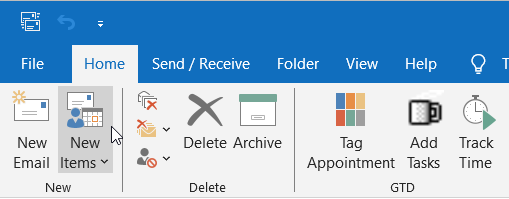
This function opens a custom Outlook form.
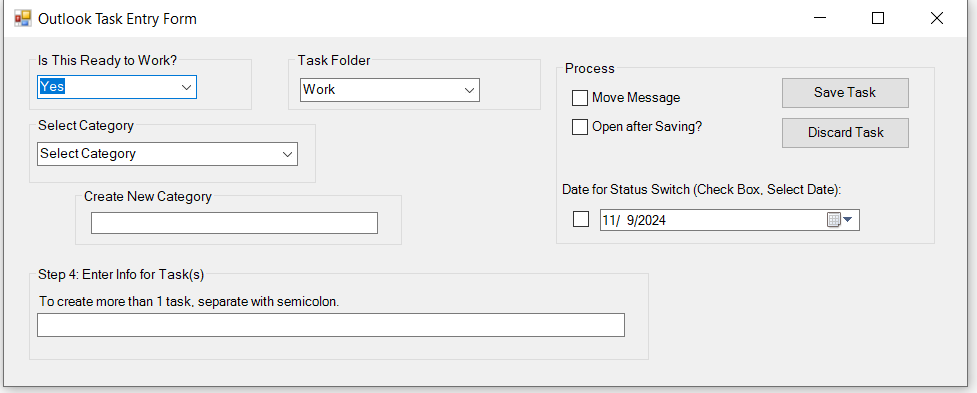
Here I make a determination if this is something that needs to be done sooner rather than later (Is this Ready to Work?), select the Task folder in Outlook where I want it to be saved, apply (or add) a category to the task, and, most importantly, define the action I need to take. This is heart of it all. You can always drag an email to the Task pane and create a task but it keeps the email subject. Here I am deciding how to make the request actionable.
This is the main function: to distill a complex email into 1 or more definite action items. I can add multiple tasks by separating them with semicolons.
Clicking the Save Task button saves it in the selected folder and copies all of the information from the email into the task body, so I have a reference of that material when interacting with the task later on.
A variation of this process occurs when I send a mail. After clicking Send, I’m prompted whether I want to create a task from the sent mail.
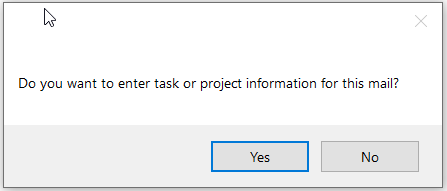
If I say yes, the same form opens and I can capture a new task, which is always going to be a Waiting task. For example, if I am sending a mail to someone asking them for something, I create the task: “Waiting on X re: the thing I asked them about”. This sets the task status to “waiting on someone” and saves it to the task folder.
This workflows enables to clear out my Inbox rapidly. I then follow it with the triage stage, which I do once a day after clearing out my email for the first time.
Task items have several user-defined fields on them. One is called Ready to Work. The other is Scheduled. Both are Yes/No fields. As I go through the long list of all tasks, I set Ready To Work to yes if I’m going to do it this week. I have the To-Do Bar turned on and grouped by Scheduled and filtered by Ready to Work = Yes. This gives me this view of tasks that are ready to be worked on:
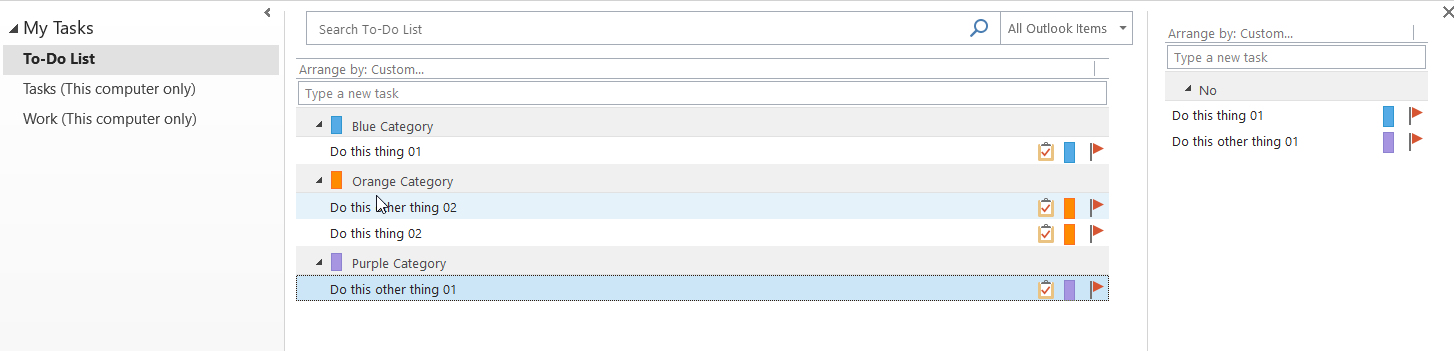
The final stage is to switch to the calendar view and start choosing the tasks I need to work on today. I add the task to my calendar and then right-click the task, selecting a custom function called Toggle Schedule/RTW.
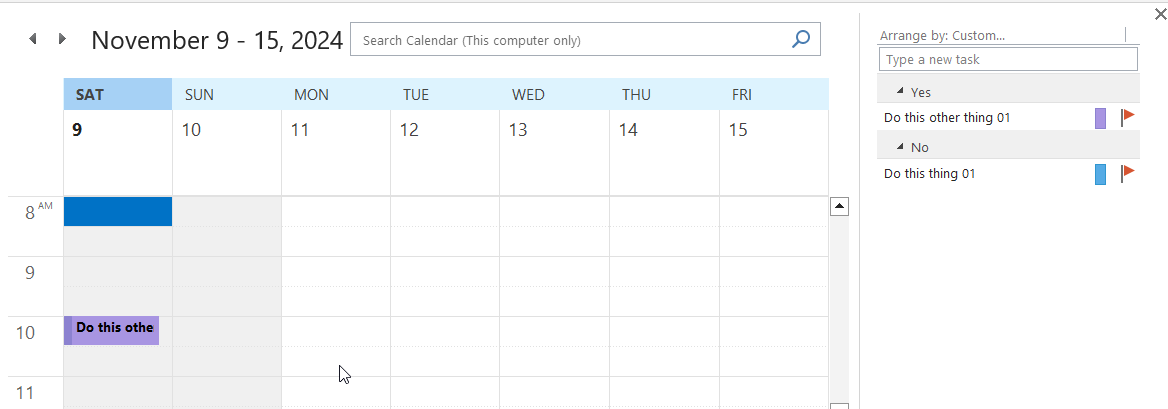
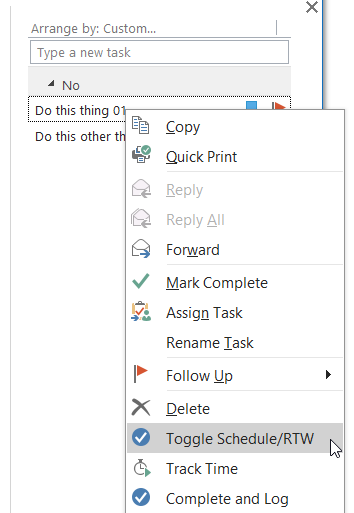
This sets Scheduled = Yes and the grouping in the To-Do Bar updates. I only work tasks that have been scheduled. When I complete them all, I look through the other tasks that are Ready to Work and schedule them.
That’s it. It’s simple and I’ve iterated on this form many times over the years. Sometimes I try a different way of triaging and categorizing. The add-in is easy to change and re-deploy.
Another benefit of using Outlook tasks is I can capture them in Teams (create Planner Task), on my phone (reminders sync to Outlook Task folders), and ad-hoc (I have a version of the tool running as an .exe that I can trigger from a shortcut.